
Whether you want to use Forge (for large traditional modpacks) or Fabric (for lightweight optimization and modern mods), the process is the same on your management interface.
1. Preparation and Security
Before any version change, it is essential to secure your existing data.
- Go to the Backups.
- tab
- Create a manual restore point to keep your current world in case the mods are incompatible with your map. Note:
2. Accessing the automatic installer
- Go to your Starmine panel and select your server.
- Click the Reinstall tab in the top menu.
3. Selecting the platform (Forge or Fabric)
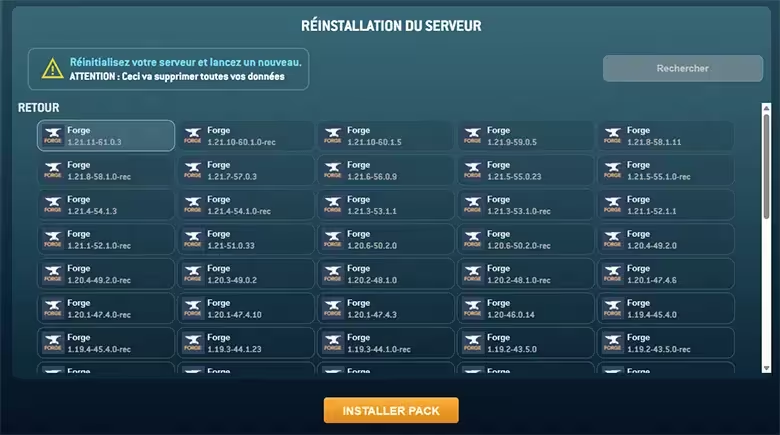
In the "Server reinstallation" section, find the two main options:
- Forge: The most popular API. Choose it if you want to install classic mods or complete modpacks. It lets you load mods by simply copying them into the
modsfolder via FTP. - Fabric (or Quilt/Paper): Choose this option for a lighter and more performant server, ideal for optimization mods or technical servers.
4. Launching the reinstallation
- Click on the Forge or Fabric logo according to your choice.
- A warning window appears: "WARNING: This will delete all your data".
- Confirm to start the automatic process.
- Watch the Console tab: you will see the system download the required Java libraries and prepare the modded environment.
5. Installing your first mods
Once the server is installed and restarted:
- Use the FTP/MySQL tab to access the server files.
- Open the folder named
mods. - Drop your
.jarfiles there, make sure they exactly match the version of Forge/Fabric installed. - Restart your server from the dashboard to load the mods.