
This guide walks you through the complete setup of your Minecraft server via the Blackhole management interface. Each section matches the different settings blocks visible on your screen to help you optimize performance and customize your gaming experience.

Server operating status
This block lets you check your machine status in real time and control its power.
Status and connection
- Connection address: The text starlight.mcserv.org is the DNS address your friends need to enter to join the server.
- Numeric IP address: The code 62.210.41.60:26481 is the direct technical identifier of your server.
- Status indicator: The green "STARTED" badge confirms that the server is currently online and accessible to players.
Quick controls
- Pause button (two vertical bars): Lets you stop the server properly.
- Restart button (circular arrow): Restarts the server. This is the action needed to apply most of the configuration changes you make.

Hardware resource monitoring
This section is crucial for anticipating slowdowns (lags) and managing the lifespan of your hosting.
System performance
- Processor: Shows the computing load. If it frequently reaches 100%, the game will start lagging for players.
- Memory (RAM): Shows current usage, here 500 MB, or 12% of total capacity. This is the resource most used by Minecraft.
- Disk space: Monitors the storage used by your map and logs, here 115 MB.
Subscription management
- Expiration: Shows the time remaining before the server is shut down, here 23 days.
- Renew button: Lets you go directly to payment to extend the rental period and avoid data deletion.
Basic settings configuration
This column on the left lets you define the technical and visual identity of your world.
Server identity
- Server Name: Enter the public name that will appear in the multiplayer menu.
- Welcome Message: Customize the text (MOTD) displayed under the server name to attract players.
- Java Version: Keep Java 21 for recent Minecraft versions to ensure optimal compatibility.
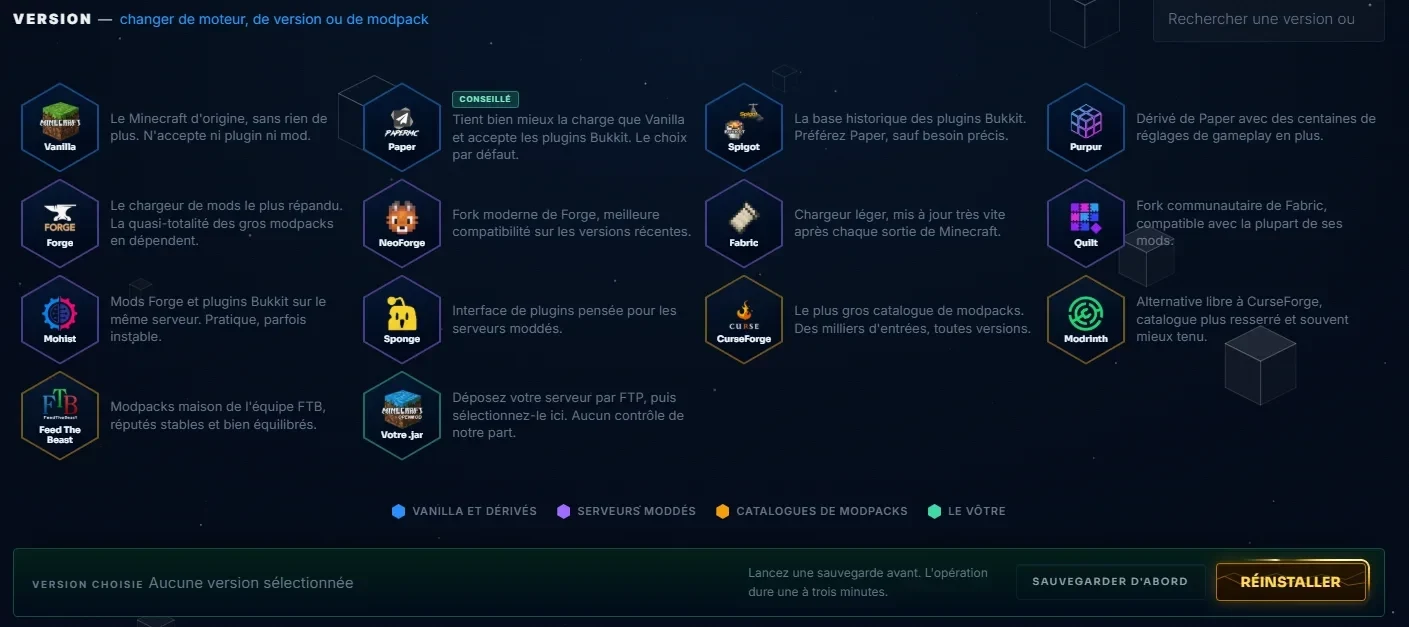
Game version selection
The "Minecraft Version" drop-down menu offers a wide selection to customize your experience:
- Official versions: You can stay on the installed stable version (vanilla-1.21.11) or choose the latest "snapshots".
- Server engines (Plugins): The interface lets you easily switch to optimized architectures like Paper, Spigot, Purpur or CraftBukkit to add advanced features to your server.
Customizing the server address
You can change the extension of your server address among several available options:
- Free extensions: Several domains are offered, such as .mcserv.org, .mcmine.fr, .serveur-minecraft.pro or .starmine.pro.
- Paid domains: Option to buy a custom domain name for a unique address.
Game rules and limits
- Difficulty: Adjust the challenge level, Easy, Normal, Hard or Peaceful.
- Game Mode: Set whether new players start in Survival or Creative mode.
- Number of Slots: Enter the maximum number of players allowed to connect at the same time.
- View Distance: A value of 10 is a good balance. Reduce it if you notice slowdowns on the server.
Managing features and the world
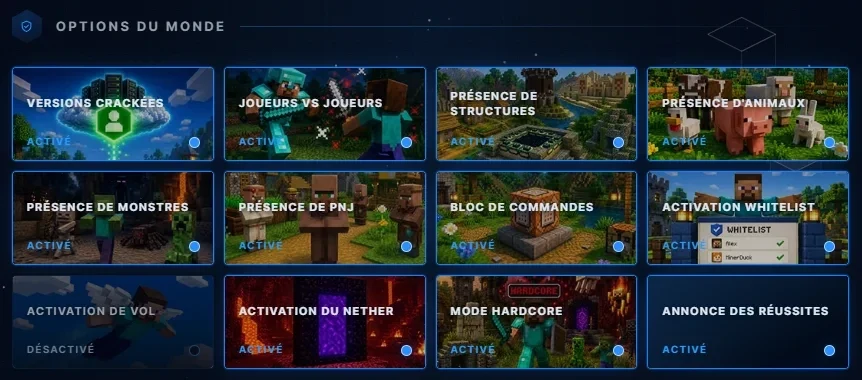
The buttons on the right and at the bottom of the interface let you enable or disable specific options with a single click.
World properties and entities
- Structures enabled: Enable this option so villages and dungeons are generated.
- Animals and Monsters enabled: Lets you control the spawning of wildlife and hostile creatures.
- NPCs enabled: Essential if you want to interact with villagers in your game.
- Nether enabled: Lets you access the underworld dimension.
Security and access
- Cracked versions: Enable this option if you want to allow players without an official Microsoft/Mojang account.
- Whitelist enabled: Essential security to make your server private. Only players added manually will be able to enter.
- Hardcore mode: Only enable this if you want a player's death to be permanent.
Important tips
- To apply the changes: Once you have made your changes, you must click the Validate button at the bottom of the page, then Restart the server using the circular arrow icon at the top next to the "Pause" button.